.png)
How to Connect Your Mobile App to CRM and Marketing Automation
Learn how to sync app signups and lifecycle events with CRM, then automate welcome messages, onboarding, team tasks, trials, payments and re-engagement.
If your business has a mobile app or web app, valuable customer signals are already being created every day: a user signs up, starts a trial, completes onboarding, uses an important feature, upgrades, becomes inactive, or cancels. Connecting those events to a CRM and marketing automation platform turns them into timely communication and accountable team actions.
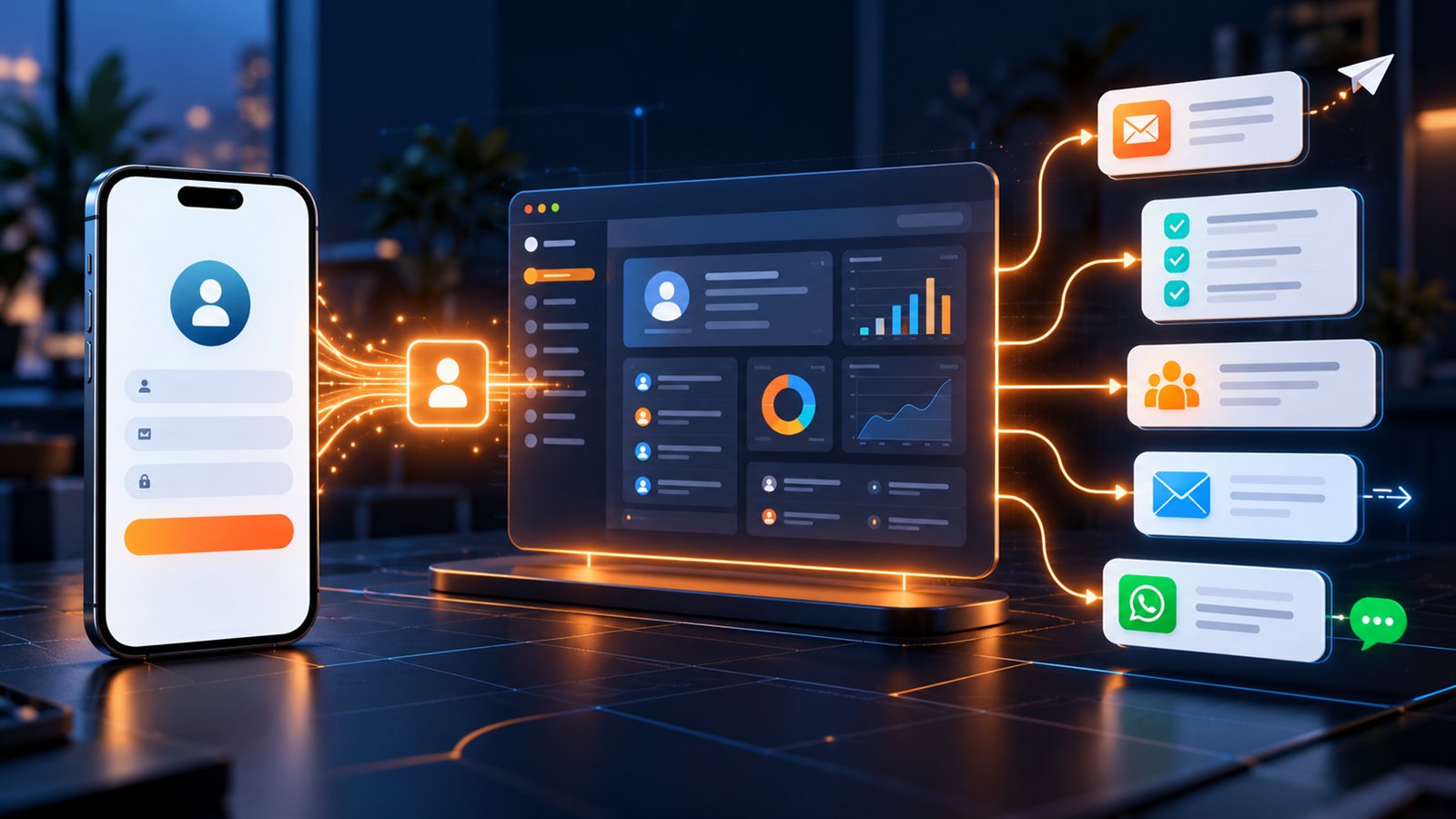
You do not need to be a developer to understand the idea. Your app reports an event, the CRM finds or creates the customer record, and a workflow decides what should happen next.
Quick answer: connect your app's secure backend to the CRM through a supported API, inbound webhook, native integration, or an automation platform such as Zapier. Send a unique event ID and the minimum customer data needed. The CRM can then update a field or tag and trigger a workflow for welcome messages, onboarding, tasks, pipeline changes, reminders, or customer campaigns.
What does it mean to connect an app to a CRM?
An app-to-CRM connection synchronizes useful customer and product events with a customer relationship record. The CRM should not copy every technical log. It should receive the events that help marketing, sales, onboarding, support, or customer success take a useful next action.
For example, when someone creates an account in your app:
- The app backend sends a `user_signed_up` event.
- The integration finds the CRM contact using a stable user ID or normalized email.
- The CRM creates or updates the contact.
- A lifecycle field becomes New signup or a controlled tag such as `app-new-signup` is applied.
- A workflow sends the correct welcome message, starts onboarding, creates a task, or alerts the responsible team.
The same pattern can be used throughout the customer lifecycle.
Can a new app signup trigger marketing automation?
Yes. A verified new-signup event can start marketing automation when the app, integration, and CRM are configured correctly.
A useful new-user workflow might:
- create or update the contact without producing a duplicate;
- save the app user ID, signup source, plan, language, country, and consent status;
- apply a standardized lifecycle tag;
- send a transactional welcome message;
- deliver a short onboarding sequence;
- create a customer-success task for high-value accounts;
- notify a team channel when sales assistance is required;
- create an opportunity for qualified business accounts;
- stop or change the sequence when onboarding is completed.
The trigger is only the beginning. A reliable workflow also needs eligibility rules, ownership, exit conditions, error handling, and measurement.
A simple architecture for beginners
The safest model is:
`Mobile or web app → secure application backend → integration or webhook → CRM → workflow automation`
The mobile app should not contain a private CRM token or webhook secret. Anyone can inspect a distributed app. Authentication, validation, event deduplication, and sensitive data mapping belong in a server-side backend or trusted integration layer.
If you do not have an internal development team, a supported native connector or Zapier integration may handle common events. For custom product events, a developer can use a documented webhook or API integration.
Which app events should be sent to the CRM?
Start with events that change what the customer or your team should experience. Do not send every screen view or button tap merely because the data exists.
| App event | CRM update | Possible automation |
|---|---|---|
| User signed up | Create contact and set lifecycle to new signup | Welcome, onboarding and team notification |
| Email or phone verified | Update verification field | Continue onboarding or unlock the next message |
| Onboarding started | Save onboarding status | Send relevant guidance |
| Onboarding not completed | Mark incomplete after a defined period | Reminder and customer-success task |
| Trial started | Store trial plan and end date | Trial education and sales qualification |
| Important feature used | Update product-interest field | Send a relevant tutorial or use-case message |
| Demo requested | Create or update opportunity | Assign owner and offer a booking calendar |
| Subscription created | Update customer stage and plan | Paid onboarding and internal handoff |
| Upgrade completed | Update plan and account value | Thank-you message and success task |
| Payment failed | Update billing status | Payment-recovery communication and task |
| User became inactive | Update engagement segment | Re-engagement campaign |
| Subscription cancelled | Update lifecycle and reason | Exit survey, retention review or win-back timing |
Scenario 1: automate a welcome workflow after a new signup
Suppose a person downloads your app and creates an account. Without integration, the registration remains inside the product database and the marketing or customer-success team may not know the user exists.
With an app-to-CRM workflow:
- The backend confirms that the signup is valid.
- It sends the CRM a unique event ID, app user ID, contact identifier, timestamp, signup source, plan, language, and consent status.
- The CRM creates or updates the correct contact.
- The contact receives the `app-new-signup` tag and a New user lifecycle value.
- A welcome email or permitted message is sent.
- A three-step onboarding sequence explains the first useful actions.
- A task is created only when the user matches a high-value rule or asks for help.
- The sequence stops when an `onboarding_completed` event arrives.
This is more useful than sending the same campaign to every app user forever. The workflow changes with the user's actual progress.
Scenario 2: help users who do not complete onboarding
A signup is not the same as product adoption. Some users register and leave before completing setup.
Your app can send onboarding milestones such as profile completed, business connected, first project created, first booking configured, or team member invited. The CRM can store a small number of meaningful milestone fields.
If the required milestone is still incomplete after a reasonable period, the workflow can:
- send one helpful instruction related to the missing step;
- link to the correct guide or video;
- offer a calendar for onboarding assistance;
- create a task for an important account;
- stop immediately when the milestone is completed;
- avoid promotional messages when consent is missing.
The objective is to remove friction, not pressure the user with repetitive reminders.
Scenario 3: connect a free trial to sales follow-up
For a business-to-business app, a trial may indicate sales intent. The CRM can combine product context with company and relationship context.
When a trial starts, store the plan, start date, end date, acquisition source, company, role, and approved qualification fields. Then use conditions to separate:
- self-service users who need automated education;
- qualified accounts that should receive a sales task;
- existing customers testing another feature;
- students, partners, internal users, or unsupported segments that should not enter the sales pipeline.
Product events such as inviting a team, completing an integration, or using a high-value feature can update lead scoring or create a timely sales task. Product activity should inform a human conversation, not pretend to prove buying intent by itself.
Scenario 4: automate upgrades, payments, and customer onboarding
After a verified subscription or payment event, update the CRM only when the transaction status is successful. Store a stable transaction or subscription ID so a repeated webhook does not create another opportunity or onboarding task.
A paid-user workflow might:
- change lifecycle stage from trial to customer;
- update the plan and renewal date;
- close the correct sales opportunity;
- send paid onboarding information;
- create implementation tasks;
- notify the account owner;
- schedule a success check-in;
- remove the contact from trial campaigns.
Failed, pending, refunded, test, or disputed transactions need different branches. They should never be treated as completed revenue.
Scenario 5: re-engage inactive app users
An inactivity workflow should use a meaningful definition. “Inactive” might mean no login for 30 days, no completed project, no booking, or no use of a core feature. The correct rule depends on how customers receive value from your app.
Send the CRM an engagement status or last meaningful activity date rather than every raw session. The workflow can segment users by plan, lifecycle, prior success, language, and permission before sending:
- a useful feature reminder;
- an onboarding resource;
- an invitation to a webinar;
- a question about the obstacle;
- a booking link for assistance;
- a limited reactivation offer where appropriate.
Stop the campaign when the user returns, replies, opts out, cancels, or enters another lifecycle journey.
Tags, fields, lists, or pipeline stages: which should you use?
Beginners often use a new tag for everything. That becomes difficult to maintain.
- Use a contact field for a value with one current answer, such as app plan, lifecycle stage, onboarding status, language, or last activity date.
- Use a tag for a controlled label that may coexist with others, such as product interest, campaign cohort, integration enabled, or customer type.
- Use a smart list or segment to combine current conditions without permanently labeling every contact.
- Use a pipeline opportunity when a person or account is moving through a real sales, onboarding, renewal, or expansion process with ownership and value.
Document each value. Prefer `app-new-signup` over several inconsistent tags such as `new user`, `new-user`, and `signed up`.
How to connect your app to Lead Connector
The exact implementation depends on the events your app can expose and the connections enabled in your account. A practical process is:
1. Define the business outcome
Begin with one sentence: “When a verified new user signs up, create or update the CRM contact, begin onboarding, and notify the team only for qualified accounts.”
2. Choose the source event
Use the server-confirmed signup or product event—not a button click that may fail before account creation finishes.
3. Create a data contract
Document required and optional fields, data types, identifiers, consent values, allowed lifecycle values, and which system owns each field.
4. Choose the connection method
Prefer a supported native integration where it covers the exact event. Otherwise use a trusted automation platform, authenticated inbound webhook, or API connection.
5. Match before creating
Use the stable app user ID where possible and normalized email or phone according to your identity rules. Decide how guest accounts, shared emails, changed addresses, and deleted users should behave.
6. Build the CRM workflow
Add trigger validation, conditions, record updates, assignment, messages, tasks, notifications, exit conditions, and error paths. See the broader guide to CRM automation workflows.
7. Test realistic cases
Test a completely new user, an existing contact, a duplicate event, missing optional data, missing required data, a user without marketing consent, a delayed event, and a temporarily unavailable destination.
8. Publish gradually and monitor
Start with internal or test accounts. Monitor integration delivery, CRM workflow history, duplicates, message results, task creation, and business outcomes before expanding traffic.
What data should you sync?
Sync only what the workflow and authorized team need. Common CRM fields include:
- app user ID;
- email and phone where legitimately collected;
- name and company;
- account or workspace ID;
- plan and billing status;
- signup source and campaign;
- language, country, and time zone;
- lifecycle and onboarding status;
- trial or renewal dates;
- last meaningful activity date;
- consent source, status, and timestamp.
Avoid copying passwords, authentication tokens, payment-card data, private product content, or unnecessary behavioral logs into the CRM.
Consent, privacy, and message type
Creating an account does not automatically mean a user has agreed to every marketing channel. Separate necessary transactional communication—such as account confirmation or security—from promotional email, WhatsApp, SMS, or other marketing.
Preserve the consent source and timestamp, honor opt-outs promptly, respect channel and regional rules, and let users change preferences. Obtain legal advice for the jurisdictions and regulated data relevant to your product.
Common mistakes to avoid
Putting CRM secrets inside the mobile app
Keep credentials in a server-side environment or approved secret manager. The app should call your backend, not expose a private CRM credential.
Creating a duplicate contact for every event
Find or update using a documented identity rule. Require a unique event ID and make repeated delivery safe.
Sending every product event to the CRM
Keep detailed product analytics in the appropriate analytics system. Send only events that drive customer communication, ownership, segmentation, or revenue processes.
Starting automation without an exit condition
Stop or redirect workflows when the user completes onboarding, replies, books, upgrades, cancels, opts out, or receives human assistance.
Mixing transactional and promotional communication
Use the correct message purpose, permission, template, and channel. Do not turn a required service notification into an unrelated marketing campaign.
Failing silently
Assign an owner for integration failures. Log event IDs and safe error details, retry temporary failures, and alert the team when delivery repeatedly fails.
How do you measure app marketing automation?
Do not judge success by the number of automated messages. Compare business and customer outcomes such as:
- signup-to-onboarding completion;
- time to first meaningful action;
- trial activation and trial-to-paid conversion;
- welcome and onboarding engagement;
- qualified tasks created and completed;
- support requests avoided or resolved;
- inactive users reactivated;
- payment recovery;
- renewal and expansion conversion;
- opt-outs, complaints, workflow errors, and duplicates.
Use a baseline before automation and compare similar user cohorts. Product changes, pricing, acquisition source, seasonality, and audience quality can also affect the result.
Frequently asked questions
How do I connect my mobile app to a CRM?
Send documented, authenticated events from your app backend to a supported CRM API, inbound webhook, native connector, or trusted integration platform. Match the user, update only approved fields, and trigger a controlled workflow.
How can I automate a task when a new user signs up?
Use a verified `user_signed_up` event to create or update the contact. Add conditions that identify users requiring human help, then create an assigned task with a deadline and relevant signup context.
Can I send an automatic welcome email after app registration?
Yes. After the backend confirms registration, the CRM workflow can send a transactional welcome email and begin permitted onboarding communication. Store consent separately for promotional campaigns.
Can my app automatically add a tag in the CRM?
Yes. Map the event to a controlled tag such as `app-new-signup`, but use fields for single current values such as lifecycle stage or onboarding status. Avoid creating inconsistent tags for the same meaning.
Do I need a developer to connect my app to marketing automation?
A native connector or Zapier may cover common no-code cases. A custom mobile or web app normally needs a developer to expose secure backend events, authenticate requests, manage identifiers, prevent duplicates, and monitor failures.
Should I use an API, webhook, or Zapier?
Use a native connector when it supports the required event and data. Use Zapier for supported low-code workflows. Use webhooks for near-real-time event delivery and an API when you need controlled read or write operations. Many implementations combine them.
Can Lead Connector replace product analytics?
No. Product analytics should retain detailed behavioral telemetry. Lead Connector can receive selected lifecycle events and connect them with CRM, conversations, tasks, campaigns, appointments, pipelines, and customer follow-up.
Turn app activity into a coordinated customer journey
The value of app marketing automation is not the connection alone. It is the ability to respond appropriately when customer status changes.
Lead Connector can bring selected app events together with CRM, marketing automation, email, WhatsApp, tasks, calendars, pipelines, and team ownership. Start with one high-value event—usually a verified signup, trial, purchase, or incomplete onboarding milestone—then expand only after the first workflow is reliable and measurable.
If you want to connect your app users with a structured onboarding, sales, or retention journey, talk to the Lead Connector team about the events, channels, and workflow your business needs.