.png)
Automated Appointment Follow-Up: Before, After, No-Show and Rebooking Workflows
Build automated appointment follow-up for confirmations, reminders, preparation, completed meetings, cancellations, no-shows, proposals and rebooking.
What is automated appointment follow-up?
Automated appointment follow-up is a coordinated set of messages, tasks and CRM updates triggered by booking status and time. It covers what happens immediately after booking, before the meeting, after completion, after cancellation and after a no-show.
The objective is not to send more reminders. It is to help the customer arrive prepared, give the employee the right context and ensure every appointment produces a clear next step.
Build separate workflows for separate outcomes
A booked, confirmed, completed, cancelled and no-show appointment should not enter the same sequence. Use status-aware branches and stop conditions. A customer who reschedules should not continue receiving reminders for the original time.
Workflow 1: immediately after booking
The first workflow should:
- Confirm the date, time, time zone and location or meeting link.
- Identify the business and appointment type.
- Provide a rescheduling or cancellation option.
- Request only the intake information needed before the meeting.
- Create or update the contact and opportunity.
- Assign the correct owner and internal preparation task.
- Record the source that produced the appointment.
The confirmation should be useful on its own. Do not hide essential details behind several links.
Workflow 2: pre-appointment reminders
Choose reminder timing based on lead time and appointment value. A common pattern is one reminder a day before and another shortly before the appointment, but urgent and long-cycle services need different schedules.
Include preparation instructions, parking or access details, documents to bring and the safest rescheduling route. Use the customer’s permitted channel and avoid sending the same message everywhere.
Read the dedicated guide to reducing appointment no-shows.
Workflow 3: internal preparation
Automation should help employees too. Before the appointment, create a task containing the requested service, qualification details, previous conversations and required documents. Flag high-value or unusual cases for manual review.
The employee should not begin the meeting by asking the customer to repeat everything already submitted.
Workflow 4: completed appointment
When an appointment is marked completed, branch according to the outcome:
- Send a concise thank-you or summary.
- Deliver requested information or documents.
- Create the agreed next task.
- Move the opportunity to the correct stage.
- Send an estimate, invoice or payment link when appropriate.
- Schedule the next appointment or onboarding milestone.
- Request feedback only after a successful experience.
The follow-up should reflect what happened. A generic “just checking in” message wastes the context created during the meeting.
Workflow 5: cancelled appointment
Confirm cancellation and offer a simple rebooking path if the customer remains eligible. Record the reason when known. Stop the original reminders and protect the calendar from duplicate bookings.
Do not treat every cancellation as rejection. Timing, illness, travel and scheduling conflicts may have nothing to do with purchase intent.
Workflow 6: no-show recovery
Send a respectful message acknowledging that the appointment was missed and offering a next step. Avoid blame. For valuable or urgent enquiries, create a human call task. Limit the number of automatic attempts and stop when the customer replies, opts out or rebooks.
Workflow 7: proposal and decision follow-up
If the appointment produced a proposal, start a separate decision workflow. Confirm receipt, schedule value-based follow-up and create an escalation before the expected decision date. Stop when the proposal is accepted, rejected or revised.
Workflow 8: post-service retention
After fulfillment, use the customer outcome to schedule review requests, care instructions, maintenance, renewal or rebooking. This is different from sales follow-up and should respect service timing.
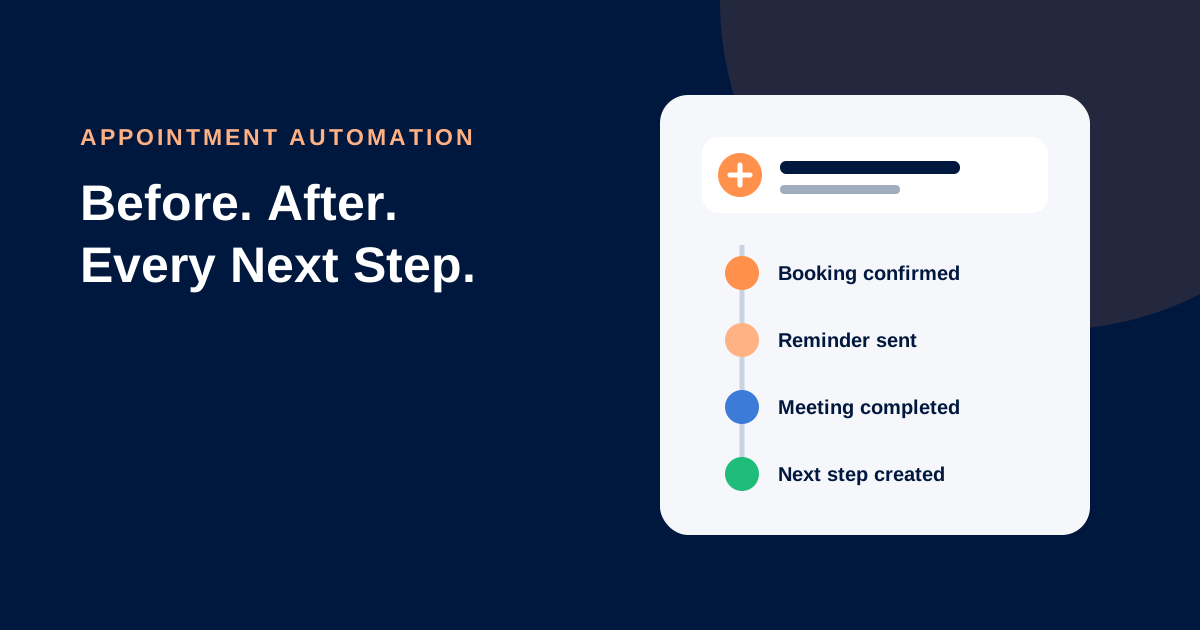
Example appointment journey
| Event | Customer action | Internal action |
|---|---|---|
| Booking created | Confirmation and intake | Assign owner and opportunity |
| 24 hours before | Reminder and reschedule link | Preparation task |
| Appointment completed | Summary and next step | Update stage and task |
| Estimate sent | Receipt confirmation | Decision deadline |
| Service completed | Care instructions | Close delivery task |
| Suitable delay | Review or rebooking request | Retention tracking |
Essential stop conditions
Stop or redirect automation after a reply, reschedule, cancellation, opt-out, completed payment, disqualification, manual takeover or stage change. Also prevent two workflows from contacting the same person about the same appointment.
Metrics to monitor
Track booking source, confirmation, rescheduling, cancellation, no-show, attendance, time to next action, estimate rate, win rate, rebooking and complaints. Compare by appointment type, owner and source.
Frequently asked questions
How soon should I follow up after an appointment?
Send agreed information promptly. The exact timing depends on the meeting outcome, but the customer should not have to ask for a promised proposal or next step.
Should follow-up be email, SMS or WhatsApp?
Use the channel appropriate to consent, content and customer preference. Email suits detailed summaries; permitted messaging is useful for concise reminders and quick next steps.
Can automated follow-up feel personal?
Yes when it uses reliable appointment context and leads to a useful action. Do not imitate a personal message deceptively or insert fields that may be empty or inaccurate.
Connect every booking to revenue
Lead Connector calendars connect appointments with CRM, conversations, workflows, opportunities and payments. Explore plans to build a measurable booking-to-sale process.